



Show the map to your players






Open the player view on a second screen and hide what your players should not see yet.
The player view is a second window that shows the scene to your players. You put it on a TV, a projector or a second monitor at the table and keep working in the main window.
Open the player view



Open the scene you want to show.
Click the eye on the scene's tab at the top.
The eye on the scene tab shows this scene on the player view. A new window opens, named Atlas player view. Move it to the screen your players look at.
You can also press Space to open the command palette and click Send Current Map to Player View.
What your players see


The player view follows your camera, so your players see it when you pan and zoom. Fog is solid for them, and hidden tokens and note pins do not show.
When you switch to another scene tab, your players keep seeing the last picture of their scene. To show them the new scene, click the eye on its tab.
To choose what else shows, press Space to open the command palette and click Local player view settings. There you turn the grid, widgets, the initiative panel, dice rolls, HP bars and nameplates on or off for your players.
Keep the players' camera still




To look around without your players seeing it, press Space to open the command palette and click Freeze Player Camera.
Now you can pan and zoom freely. Your players keep their view, but they still see tokens move and fog change. Click Freeze Player Camera again to let the player view follow you.
See what your players see


Press D to change to Session View, where the scene looks as it does for your players. Press D again to go back to GM View.
Hide parts of the map with fog


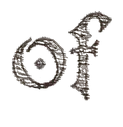


Fog hides the parts of the map your players have not found yet.
Choose Fog Tool in the toolbar, or press F.
Drag over the parts of the map your players should not see. In GM View the fog is half transparent for you, and for your players it is solid.
Paint fog over the unexplored rooms of the map. When your players explore, choose Fog Eraser (press E) and drag over the area to reveal it.
Erase fog as the players enter a room, seen side by side with the player view.
The small arrow next to the fog button has more shapes and the Brush Size. See Fog of war.
Hide a token
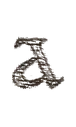

Right-click a token and click Hide. Your players no longer see it, and in GM View it is half transparent for you. To reveal it, right-click it and click Show.