Stream Deck
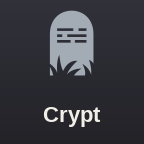
Run the table from the keys of an Elgato Stream Deck. Change the mood when the party walks into the crypt, start the fight, hide the map while you set up the next room. The keys light up while their music plays or their fight runs, so the deck shows how things stand.




Atlas VTT Control
Version 0.2.0 · 373 KB
You need
- Atlas 0.19.0 or later, in Obsidian on a computer.
- The Stream Deck app 7.1 or later, on Windows 10 or macOS 13 or later.
- On Linux, OpenDeck 2.14 or later and Node.js 20 or later.
Check the file
SHA-256: e6bc0561b58e69cfd995d81c83f0c1ff3f816aa1f4e51548282c0c5b58da33ac
The plugin is free software under the AGPL-3.0. Its source code is on GitHub.
Set it up
Double-click the file you downloaded. The Stream Deck app asks whether to install Atlas VTT Control. On Linux, install it in OpenDeck instead.
In Obsidian, open Settings → Atlas VTT and go to Stream Deck. Switch on Control Atlas from a Stream Deck.
In the Stream Deck app, find the Atlas VTT Control group in the list of actions. Drag Play mood onto a key and click the key.
Press Pair with Atlas in the key’s settings. Switch to Obsidian and press Allow. The key’s settings now say “Paired. Your keys now control Atlas.”
Pick a mood for the key. Drag on any other keys you want: they work at once, since the plugin is paired for all of them.
The keys
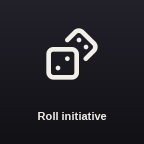
The table and dice keys act on the Atlas map in front of you. A key with nothing to act on goes faint, like Roll initiative before anyone joins the fight.
Music and ambience
| Key | What it does |
|---|---|
| Play mood | Plays the mood you pick for the key. The key shows the mood’s crest and lights up while it plays. |
| Stop all | Stops all music and ambience. Press it again to bring everything back. |
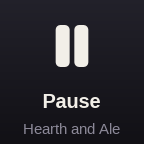
| Play / pause music | Pauses the music where it is, and the ambience plays on. The key shows the track. |
| Next track, Previous track | Skip through the music’s list. |
| Shuffle, Repeat, Mute music | Switch them on and off. The key lights up while one is on. |
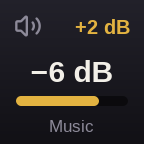
| Volume | Changes the master, music or ambience level of this computer, or the music in the mix that players hear too. On a Stream Deck +, turn the dial, and push it for 0 dB. |
At the table
| Key | What it does |
|---|---|
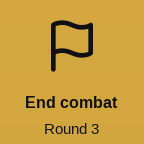
| Start / end combat | Starts the fight on the map in front of you, as the tracker’s Start button does. During the fight it shows the round and ends the fight. |
| Roll initiative | Rolls initiative for every combatant, with the modifiers from their statblocks. |
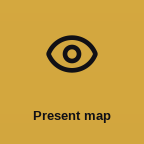
| Present map | Shows players the map in front of you, and opens the player window when it is closed. |
| Freeze camera | Keeps players on the view they see now. Press it again to let their view follow yours. |
| Hide the map | Lowers the curtain in the player window, so players see black until you press it again. |
| Show / take back image | Point at an image anywhere in Obsidian, in a note, a statblock or an image tab, and press the key: players see it. While they see an image or loot, the key reads Take back, and a press takes it away. |
Dice
| Key | What it does |
|---|---|
| Roll dice | Rolls one of your saved rolls, with 3D dice, as the dice tray does. The key shows the roll’s die, colour and name. |
| Show my rolls to players | Switches whether players see your dice rolls. The key lights up while they do. |
A dice key keeps the roll you picked. On a map of another collection it goes faint, unless that collection has the same roll.
On Linux
Elgato’s app does not run on Linux. OpenDeck runs Stream Deck plugins there, and the Atlas plugin works in it.
Install OpenDeck 2.14 or later and Node.js 20 or later. On Arch Linux:
sudo pacman -S opendeck nodejs. For other distributions, follow OpenDeck’s install guide. A Flatpak OpenDeck needs Node.js installed from your distribution, not as a Flatpak.Let your user reach the Stream Deck. The .deb and .rpm packages of OpenDeck do this for you; otherwise run:
curl -LO https://raw.githubusercontent.com/OpenActionAPI/rust-elgato-streamdeck/main/40-streamdeck.rules
sudo cp 40-streamdeck.rules /etc/udev/rules.d/
sudo udevadm control --reload-rules && sudo udevadm trigger
Then unplug the Stream Deck and plug it in again.
Start OpenDeck and open Plugins. Press the button that installs a plugin from a file, and pick the file you downloaded.
Switch on control in Atlas and pair the plugin, as in Set it up from step 2.
When a key does not answer
- A plug in the corner of the key: Atlas is not running, or Control Atlas from a Stream Deck is off.
- A key symbol in the corner: the plugin is not paired. Press Pair with Atlas in the settings of any Atlas key.
- Atlas says that port 47823 is in use: another program holds it. Close that program, then switch Control Atlas from a Stream Deck off and on again.
- On Linux, the plugin writes its log to
~/.local/share/opendeck/logs/plugins/dev.atlas-vtt.control.log.
Still stuck? Ask on Discord or report an issue.
Privacy
The plugin talks only to Atlas on the same computer, at 127.0.0.1 on port 47823. Atlas turns away requests from web pages and does nothing for the plugin until you press Allow. Nothing leaves your computer.
To stop the Stream Deck from controlling Atlas, press Revoke beside Paired controller in Atlas’ settings. The keys then show that the plugin needs pairing again. The privacy notice has the rest.
Key icons from Lucide (ISC licence). Mood crests from game-icons.net by Delapouite and Lorc (CC BY 3.0).